Media Library Mastery: Organize Your Course Content Like a Pro
Summary
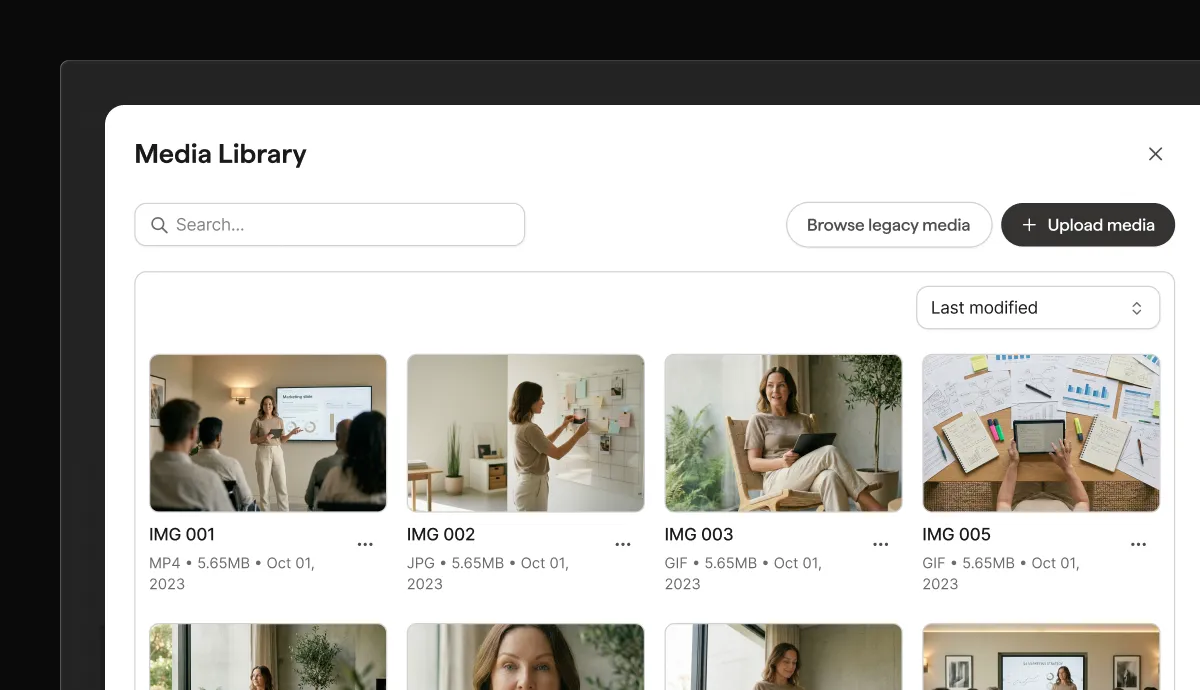
If you've uploaded the same video more than once across your Kajabi site, your media library needs a system. Kajabi's Unified Media Library gives you one place to store, organize, and reuse every video, image, and audio file across your entire business. Upload once, use everywhere. This article covers how the library works, how to set up a folder structure in 30 minutes, and the small habits that save you the most time over the long run.
Quick question: how many times have you uploaded the same video to different parts of your Kajabi site?
Once for the course. Again for the community post. A third time for the sales page. Maybe a fourth for an email.
It's the kind of thing you don't think about until your storage is bloated, your upload times are painful, and you can't remember which version of a video is the "final" one.
Kajabi's Unified Media Library fixes this, and if you haven't set it up yet, you're working harder than you need to.
What the Unified Media Library Does
One place for all your media. Videos, images, audio files — organized in folders, reusable across your entire Kajabi site.
Upload once. Use everywhere. Course lessons, community posts, landing pages, emails, blog posts. They all pull from the same library.
The folder system
Create folders that match how you think:
- By course: "Course: Photography Masterclass" → all lesson videos
- By content type: "Sales Videos" / "Testimonials" / "Course Content" / "Community"
- By date: "2026 Q1" / "Product Launch" / "App Content"
- By project: "Joe Launch" / "John Campaign" / "Blog Videos"
There's no wrong way to organize, so the important thing is having a system.
Setting Up Your Library (The 30-Minute Cleanup)
Step 1: Create your folder structure (5 minutes)
Start with 4-6 top-level folders:
- Course Content
- Marketing Assets (sales pages, ads, social)
- Community Content
- Templates & Resources
- Raw Footage (if applicable)
Step 2: Upload and organize new content (10 minutes)
Going forward, upload everything to the library first, THEN add it to courses/pages. This ensures everything has a home.
Step 3: Consolidate duplicates (15 minutes)
Go through your existing courses and pages. Find videos that are uploaded multiple times. Replace duplicates with the single library version. Delete the extras.
Pro Tips
Use video chapters. Kajabi's new Clickable Video Chapters feature pairs perfectly with the media library. For long-form content (30+ minutes), add chapters so members can jump to specific sections. This transforms hour-long masterclasses into navigable, accessible learning.
Name files consistently. Use a naming convention: [Course]-[Module]-[Lesson]-[Topic].mp4.
Future you will thank present you.
Batch upload at the start of a cycle. If you're producing content for the next 6 weeks, upload everything to the library in one session. Then build courses and posts by pulling from what's already there.
Use it for community too. Audio posts, video posts, resource shares — all from the library. Your community content stays organized alongside everything else.
The Compound Effect
An organized media library doesn't save you time today. It saves you time every day going forward. Every time you don't re-upload a video. Every time you find the right asset in 5 seconds instead of 5 minutes. Every time you reuse a testimonial clip without hunting for it.
Small optimization. Massive compound return.